Product photo to video: plan the motion, check the product.
Start with an accurate photograph, choose one small movement, then inspect the whole clip for changes to the product. A convincing camera move is useful only if the result still shows what you sell.
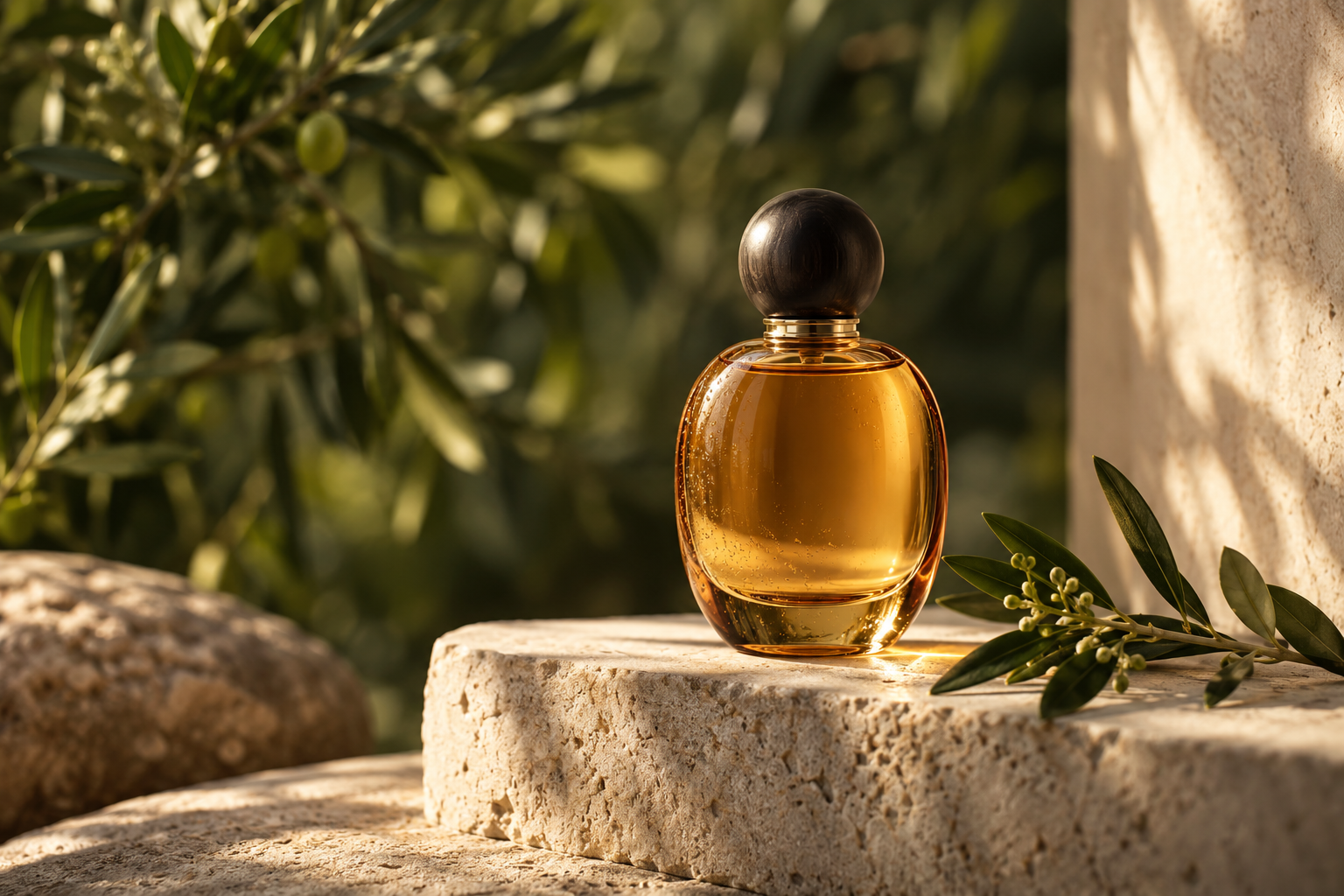
Reference image only. The exercises below are original planning examples; they have not been rendered or tested as videos.
1. Approve the photograph before animating it
Use your actual product or a reference you have permission to use. Check the silhouette, cap or handle, material, color, label placement, and contact with the surface. Keep the parts that matter visible in the crop. A beautiful but inaccurate starting image is the wrong reference for a faithful product demonstration.
- Shape: compare the outline and proportions with the real item, including small attachments and openings.
- Packaging: confirm every visible word, logo, and printed detail before asking a model to animate it.
- Framing: leave space for the intended crop and any captions you will add later in an editor.
- Light: check that shadows and reflections already make sense. Record which side the light comes from.
If the shot needs a view around the back of the item, capture that view instead of treating a single front photograph as evidence of unseen details. Generative output can be a visual concept, but it is not a factual record of a surface the reference never shows.
2. Give the image and the motion prompt separate jobs
In its current image-to-video prompting guide, Runway explains that the input image establishes the scene while the text describes movement. Start simply, then refine the part that needs work. Check your chosen model's documentation: reference roles and camera controls can differ between modes.
Write two notes before generating. The first is your acceptance checklist: what must remain recognizable? The second is the motion brief: what should move, in which direction, and where should the shot end? The checklist helps you judge the result; it does not need to become a long list of instructions in the prompt.
Keep the bottle stationary. Move the camera slightly closer. Let the foliage supply a little background movement. Finish with the cap and base still visible. Review the bottle outline, glass color, cap, and pedestal contact after rendering.
Choose duration and aspect ratio in the generator's settings when those controls exist. Writing a setting in a prompt does not establish that the selected model supports it. Prepare one continuous shot first; add titles, sound, and separate scenes during editing as needed.
3. Use a small prompt experiment
These are proposed exercises, not claims of tested performance. Replace the object and movement with details that fit your own photograph. Save the reference, exact prompt, model and mode, settings, and any generation charge so that you can compare attempts fairly.
Exercise A: a short move toward a stationary product
The camera moves slowly a little closer to the bottle on the pedestal. The bottle stays in place. The leaves behind it move gently. The shot settles on a clear view of the whole bottle, with the cap and base inside the frame.
Use this when the initial frame has enough room around the product. Check whether the closer view changes its proportions or crops a detail you need. If the move reveals inaccurate details, reduce its extent before adding more instructions.
Exercise B: move the surroundings while holding the frame
The camera holds the original framing. The bottle remains still on the pedestal. Only the background leaves sway softly, then settle. The shot ends with the same clear view of the bottle.
This alternative asks for motion without a new view of the product. It still needs review: a request for a stationary subject or camera does not guarantee perfectly unchanged pixels. If exact packaging artwork is essential, consider animating the original photograph in an editor with a simple crop or position change instead of regenerating it.
Do not combine a large orbit, rotating package, flowing liquid, opening lid, and changing background in your first attempt. A smaller exercise gives you a clearer way to identify which request causes trouble.
4. Review the whole clip, not the best frame
Pause at the beginning, middle, and end, then watch the transition between them. A label may look right at the opening and change later. Compare the output with the original photograph using the same crop where possible.
- Check the product outline, cap or handle, proportions, and color.
- Read visible packaging text and inspect the logo throughout the clip. An instruction to preserve it is not proof that every letter survived.
- Check where the item touches the surface. Look for sliding, floating, changing shadows, or a pedestal that shifts independently.
- Look for new hands, props, liquids, openings, or features that the product does not have.
- Confirm the ending can be used in your edit and that any generated audio fits the deliverable. Do not assume sound support is universal.
Decide whether an output is an acceptable mood concept or an accurate product asset. Keep those decisions separate. If a correction would misrepresent the item, use a faithful still or another source shot.
5. Diagnose a failure before spending on another attempt
The label or logo changes
First check the source at the size used by the model. Try a clearer photograph or a motion plan that changes less of the view. For exact typography, use your original artwork in an editor with an appropriate tracking or compositing workflow; that is a separate editing task, not something a longer prompt guarantees.
The product changes shape during a camera move
Compare a shorter camera move with a fixed-frame exercise while keeping the other settings the same. If the shot reveals a new side, supply an accurate reference through a mode that actually supports it, or use a separately captured angle. Avoid asking the model to invent a missing product view and then presenting it as verified.
The shot cuts or the camera ignores the brief
Remove competing actions and review the reference for visual cues that suggest motion. A blurred or mid-action image may conflict with a still subject request. The Runway guide also discusses sequence length and unwanted cuts; apply that advice within the selected model's supported settings, rather than assuming every platform behaves alike.
Change one variable per attempt. A useful log contains the failure, the one change, the result, and the actual charge. Stop when the next attempt is unlikely to answer a new question, or when your budget for the exercise is exhausted.
6. Save a motion plan you can reuse
Keep the approved reference, motion brief, acceptance checklist, and review notes together. Use Shotmelo's image-to-video prompt planner to draft and export the text plan, then generate in your chosen video service. Shotmelo's current preview does not render or download videos.
For a different source photograph, revisit the framing and acceptance checklist before reusing a prompt. To choose the service for the task, read our AI video generator selection guide. For an editable starting reference, explore the prompt examples.