How to write a prompt from an image.
Start with what you can see: the subject, its position, the surrounding scene, light, and color. Put the details you want to preserve first, then describe any intended change separately. The result is an editable creative brief; it is not proof of the original prompt used to make the image.
1. Decide what the reference is for
Before listing every object, finish this sentence: “I want a new image that keeps ___ and changes ___.” A reference might supply the layout, the lighting mood, or the particular object. Those are different jobs. Write down the two or three details that would make the result useful to you, rather than giving every visible leaf equal importance.
- A similar scene: describe the subject and arrangement in words.
- A similar look: describe the palette, contrast, textures, and light.
- The same object: check whether your chosen tool supports a suitable image reference or editing workflow.
Text is useful for communicating an intention. It is not a promise to preserve a product's exact outline, label, or identity. If those details matter, plan how you will check the actual result against the reference before approving it.
2. Describe the image before explaining it
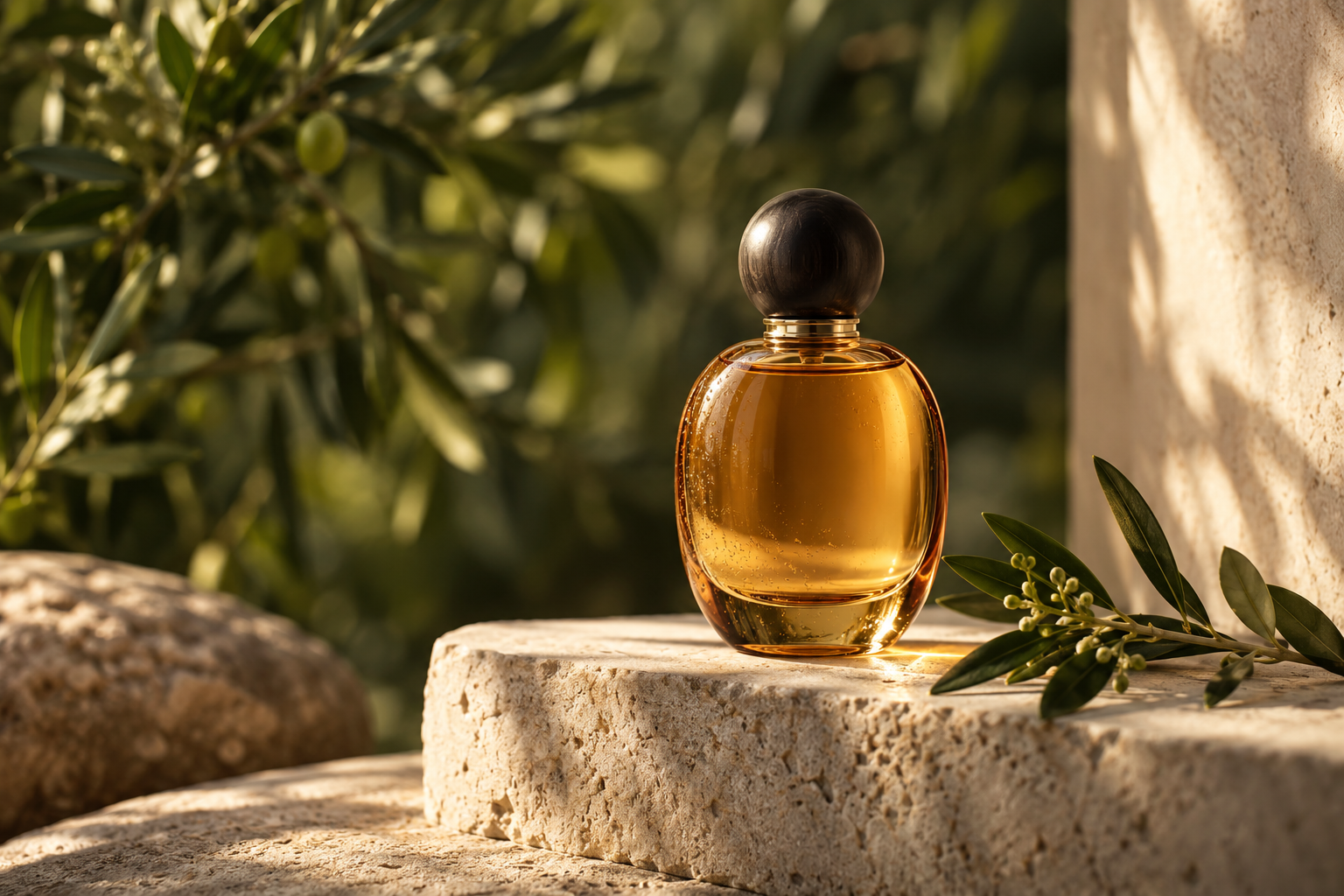
In this example, the bottle is the main subject. Its base sits on the stone block; the entire cap is visible. A description that says only “luxury product, cinematic, beautiful” leaves out those useful spatial details. Build a short observation list before turning it into prose.
| Look for | Useful observation | Do not silently assume |
|---|---|---|
| Subject | Amber-colored glass bottle, oval body, dark rounded cap. | A brand, fragrance, exact volume, or cap material. |
| Placement | Upright bottle slightly right of center, resting on a pale stone block. | Exact physical dimensions or camera distance. |
| Scene and depth | Green leaves around the bottle, soft background foliage, pale wall on the right. | A particular country, garden, or plant species. |
| Light and color | Warm directional light, bright amber highlights, leaf-shaped shadows, muted greens. | A capture time, lamp model, lens, or aperture value. |
Uncertainty is useful information. If a surface only looks like stone, “pale textured block” may be enough. If an exact lens is unknown, describe the visible effect, such as a sharp subject and soft background. You can request a lens or aperture as a creative choice, but label it as your instruction rather than a recovered camera setting.
3. Turn the priorities into a short prompt
Start with the subject and framing, add the scene, then name the light and finish. Here is an original draft based on the visible reference:
Product-style image of an upright amber-colored glass bottle with an oval body and a dark rounded cap. Place the whole bottle slightly right of center on a pale textured stone block. Green leaves frame the scene, with softly blurred foliage behind it and a pale wall on the right. Use warm directional light, bright amber highlights, and leaf-shaped shadows. Keep the bottle as the clear focal point.
This is an untested example, not a recipe known to reproduce the reference. The words describe the visual priorities without inventing a brand or capture metadata. Your chosen model and its actual reference controls will also affect what it produces.
Keep a requested change separate
For a variation with a different backdrop, keep the observation note intact and write a second instruction. This makes it easier to tell which differences were intended when reviewing an output.
Intended variation:
Change the background behind the bottle to a muted blue backdrop. Keep the bottle upright and slightly right of center on the pale stone block, with the same clear view of its cap and body.

Review before accepting:
Is the backdrop blue? Is the bottle still fully visible? Did its body or cap change in a way I did not request?
That instruction still needs a suitable tool and an actual result to evaluate. If you need a close layout match, check the image controls rather than repeatedly adding more adjectives. Adobe's current composition reference guide describes a dedicated reference upload and a Strength control for its documented Firefly workflow. A composition reference is a separate input from the text prompt; confirm what your selected model supports. This documentation was checked October 16, 2026.
Adobe's photographic prompting tutorial also shows photographic language and reference sketches as ways to direct a new image. That is creative direction, not evidence that those settings were used to create your starting reference.
4. Copy this image-to-prompt worksheet
Goal for the new image:
Subject and visible features:
Position, framing, and space around the subject:
Foreground / background:
Visible light, color, and texture:
Two or three details that must remain:
Details I cannot establish from the picture:
Intended change, if any:
Draft visual prompt:
Tool / model / reference input used:
Observed result and next revision:
After a generation in your chosen tool, compare the result with your must-keep list. If the bottle is cropped, address framing first. If the background dominates, simplify it. If the object changes, inspect the reference workflow and the resulting shape. Record one observed problem and one revision so you can understand the next result.
If the next step is video
Keep the static description as a reference note. Add a separate motion brief for what should happen over time, such as a small camera move while the bottle stays in place. Do not describe an imagined movement as something observed in one still. The product photo-to-video guide and camera movement guide cover that next planning step. Decide the delivery crop with the aspect-ratio guide before preparing another image.
Common reference-image questions
Can I recover the exact original prompt?
Treat a newly written description as a new prompt. If you need the original wording, look for the creator's published prompt or source project. A plausible visual description alone does not establish the original text, model, settings, or editing history.
Should I include every detail?
Include what the new image needs. A bottle's shape may matter more than the number of background leaves. Keep a fuller observation note if helpful, but make the working prompt's priorities clear.
Does uploading a reference to Shotmelo analyze it automatically?
No. The current preview supports a local reference preview, prompt editing, draft saving, and text export. Automatic image analysis, AI image/video rendering, accounts, and payments are not connected. You write and review the description, then use a separate generation tool.
Use the Shotmelo planning workspace to preview a reference locally and edit your text. Save the goal and must-keep details alongside the prompt so the next revision has a clear purpose.